
Create with text or an image
Type a name or signature, or choose an image for your logo. Save your watermarks in the app so they’re ready for your next batch.
Add your name, logo, or signature to photos and videos. Create a watermark once, save it, and use it whenever you need it.
Public App Store release coming soon.

Create a watermark, choose your photos, and see exactly how it will look.
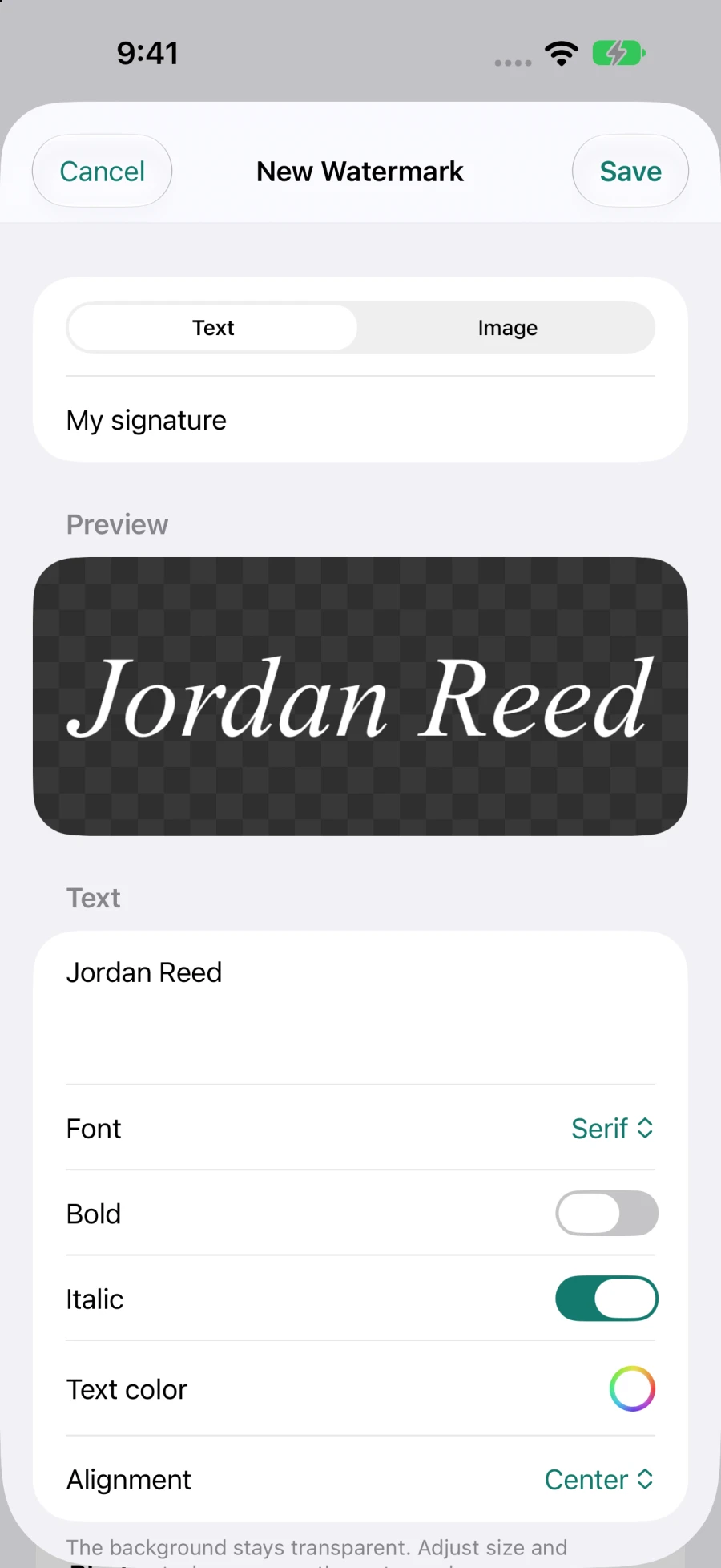
Start with text or your own image. Save it for the next time.
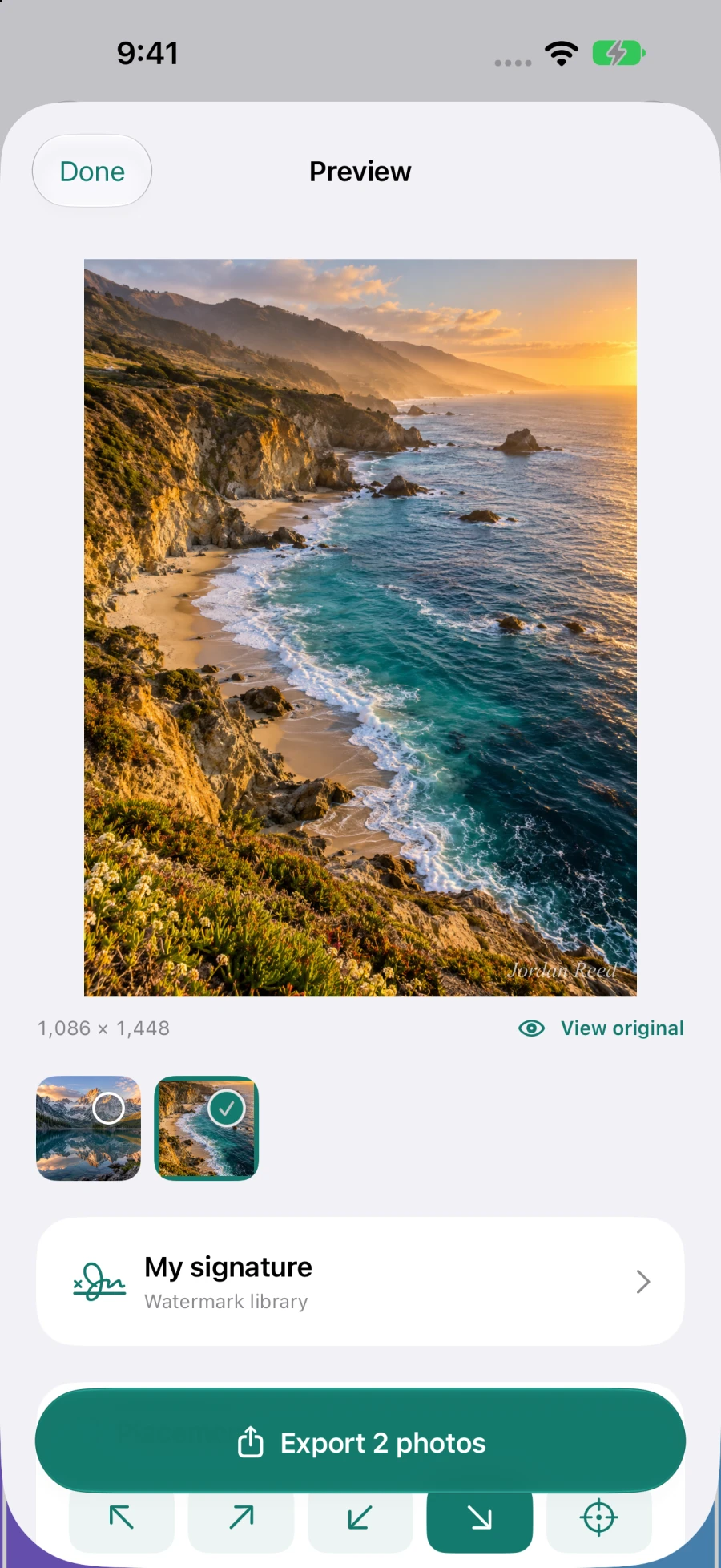
Portrait photos keep their shape, with the whole image in view.
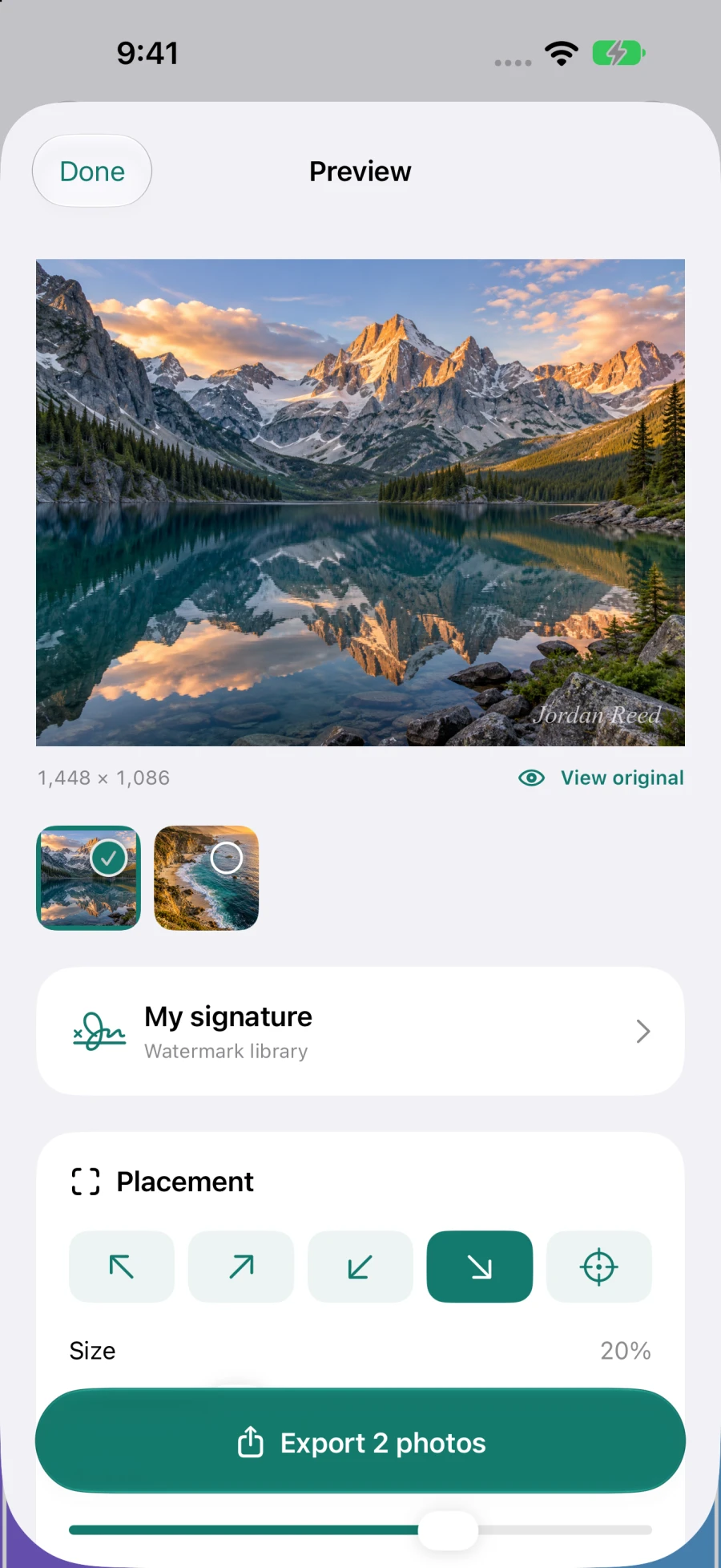
Adjust the size and position before saving your new copies.
Actual iPhone app screens, shown with sample photos.
Type a name or signature, or choose an image for your logo. Save your watermarks in the app so they’re ready for your next batch.
Preview portrait and landscape photos at their natural proportions. Adjust your watermark’s position, size, opacity, and distance from the edge.
Select one item or a whole batch. Apply the same watermark to your photos and videos, then save separate copies.
Browse your Photos library and albums, including shared albums you can access. Your main library stays separate from shared albums.
Create a text or image watermark, or use one you’ve saved. Check the preview before you export.
Save to Photos and choose an existing album or create a new one. On Mac, you can also work with folders and choose the export folder and its name.
No. Exports are new files. Your original photos and videos stay in your library or source folder.
Yes. Include Location is on by default when saving to Photos. Turn it off before exporting if you don’t want the new copies to include the source location.
Photos and videos stored only in iCloud need to download before they can be watermarked. Apple also needs a connection to sync your exported copies to other devices.
Email ceo@bghddevelopment.com with your app version, device, and what happened. A screenshot can help, but only include photos or other details you’re comfortable sharing.